

Projects and deploys
A Maitento project is a folder. Each kind of definition has its own sub-folder, and the file name is the
definition’s name: agents/greeter.mtr defines the agent greeter.
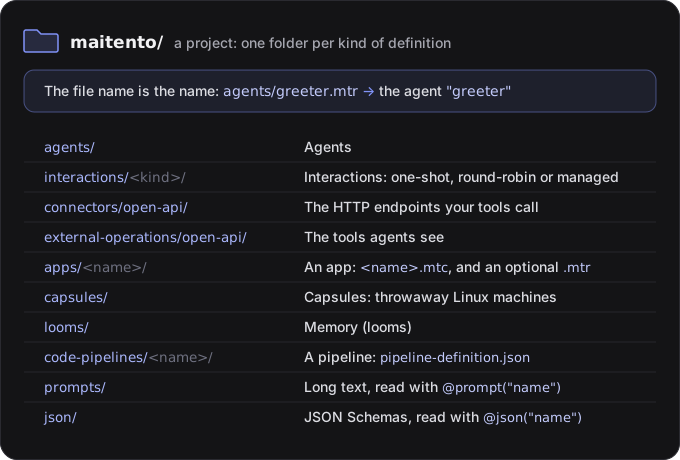
Sub-folders inside these are fine. Anything else in the project folder, such as a README, is ignored.
The .mtr format
Section titled “The .mtr format”Definitions are written in .mtr files: one name = value per line.
// The model this agent runs on. See the names you can use with `mt aimodel-list`.model = @ref("deepseek.deepseek-v4-flash")prompt = "You are a friendly assistant. Keep every answer to one or two sentences."summary = "A friendly assistant"What you can write as a value:
| Value | Example |
|---|---|
| Text | "You are a friendly assistant." |
| Number or true/false | 3, true |
| A block of properties | agent = { name = "Greeter" agent = @ref("greeter") } |
| A list | ["git", "curl"] (commas between items) |
| Another definition | @ref("greeter"), or @ref("greeter", "other-namespace") |
A file from prompts/ | @prompt("poet") reads prompts/poet.md, as in tutorial 2 |
A file from json/ | @json("recipe") reads json/recipe.json |
| A comment | // anything after two slashes |
Rules that catch people out:
- Put spaces around
=.task="x"does not parse;task = "x"does. - Text in
.mtrfiles is taken literally.\nstays as a backslash and ann. Put anything longer than a sentence in aprompts/*.mdfile and use@prompt(...). - A list can’t be empty. Leave the property out instead.
- Prompt and JSON files are found by name, wherever they sit under
prompts/andjson/, so keep their names unique.
Every kind of file and every property it can set is listed in the project-file reference,
and the VS Code extension completes and checks .mtr files as you type.
Validate, then deploy
Section titled “Validate, then deploy”Sending a project to Maitento is a build. A build compiles every file, checks every @ref, and then either
throws the result away (validate) or saves it (deploy). Nothing is half-saved: if any file has an error,
nothing changes.
You can build from three places:
import { Maitento } from "@maitento/sdk";
const mt = new Maitento({ namespace: "hello-maitento" });await mt.validate("./maitento"); // check onlyawait mt.deploy("./maitento");   // save
from maitento import Maitento
mt = Maitento(namespace="hello-maitento")mt.validate("./maitento") # check onlymt.deploy("./maitento") # saveusing Maitento.Sdk;
await using var mt = MaitentoClient.CreateFromEnvironment();await mt.ValidateAsync("./maitento", "hello-maitento"); // check onlyawait mt.DeployAsync("./maitento", "hello-maitento"); // savemt ns-set hello-maitentomt build ./maitento # check onlymt deploy ./maitento # saveThe third place is the portal’s Build studio, which has an editor with the same folder layout, and Validate and Deploy buttons. Errors link to the file and line.
See it in tutorial 1, Hello, agent, which deploys its first project and then breaks a reference on purpose: the deploy names the file and saves nothing.
Versions
Section titled “Versions”Every definition keeps its history. A deploy that changes a definition adds a new version, and a deploy where nothing changed reports it as Unchanged. A new run uses the newest version.
To go back to an earlier version, deploy its files again. The deploy adds them as a new version, so new runs use them, and the versions in between stay in the history.
When an interaction uses an agent, it is tied to the agent version that existed when the interaction was deployed. Deploy the whole folder after you change an agent, and the interaction picks up the new version.
Deploys only add
Section titled “Deploys only add”A deploy creates and updates. It never deletes: removing a file from your folder does not remove the
definition. Delete definitions in the portal, with the SDK, or with the mt *-delete commands.
What isn’t deployed
Section titled “What isn’t deployed”A few things hold data rather than describe behaviour, so you create them directly through the portal, the SDK or the CLI, not with a deploy:
- secrets
- virtual file systems and knowledge bases
- webhooks
- automations
- API keys and model keys